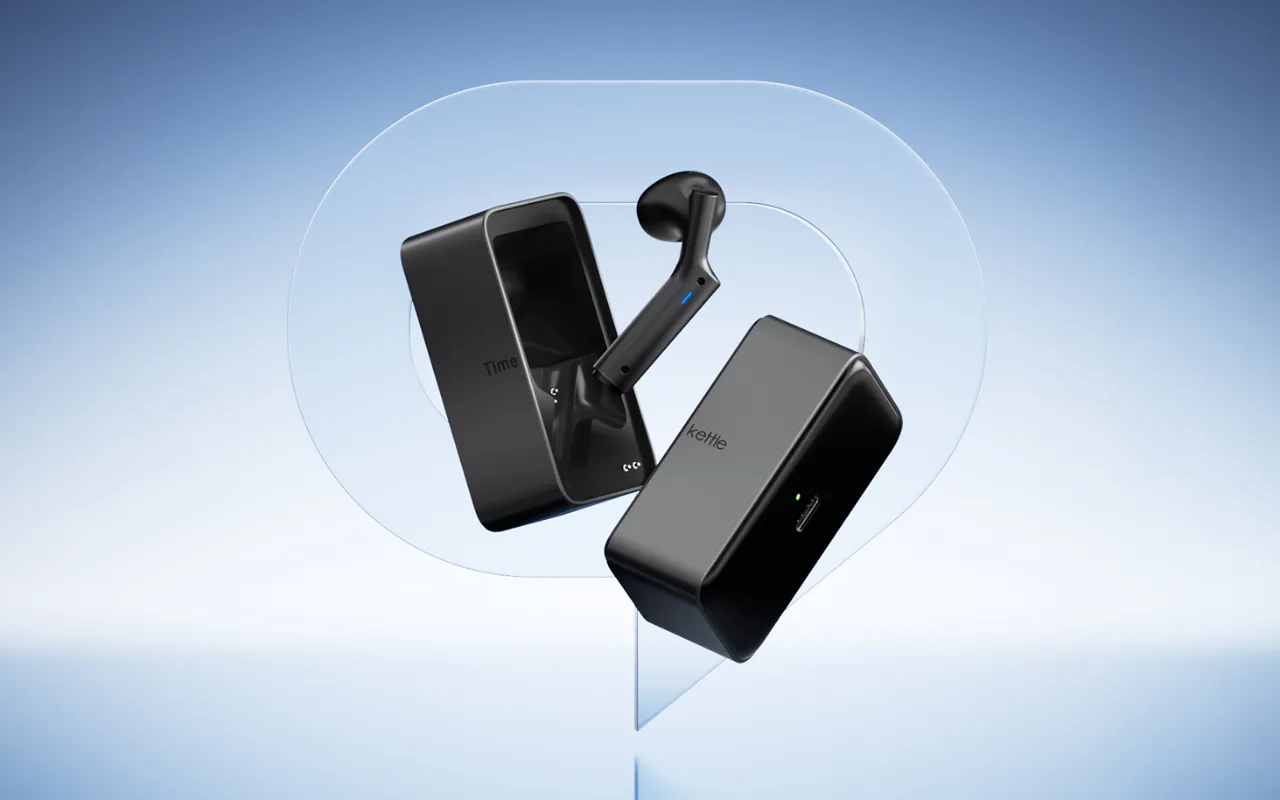
Timekettle LiveTalk User Guide, Tutorials & FAQ

1. User Manual
Download the LiveTalk User Manual:
2. Video Tutorials
Here's the official tutorial video:
3. Frequently Asked Questions
💡 Translation Features & Usage
- Q: What translation modes does LiveTalk offer?
A:
1. Face‑to‑Face Mode
Perfect for in‑person conversations. Simply choose your language pair, and LiveTalk delivers smooth, two‑way translation with automatic voice playback and real‑time switching. Ideal for travel, meetings, or anytime you're talking with someone right in front of you.
2. Live Listening Mode
Great for lectures, presentations, or group settings. The earbuds continuously listen to surrounding speech and translate it in real time—so you can follow along without missing a word.
3. Voice Call Translation Mode
Designed for phone or app calls. LiveTalk translates both sides of the conversation as you speak, breaking down language barriers even when you're not in the same room.
4. Multi‑Media Translation Mode
For videos, podcasts, or any on‑screen content. LiveTalk provides real‑time translated subtitles, so you can enjoy foreign‑language media with ease.
- Q: Does LiveTalk's Listen-in Mode automatically capture the key points for me?
A:
Yes – and it's one of our favorite features. While you're using Listen‑in Translation, the built‑in AI Live Summary works silently in the background. It generates time‑stamped topics and concise summaries from the audio it captures, so you never lose track of what mattered most.
All transcripts and summaries are automatically saved to your translation history, making it easy to revisit important details after meetings, lectures, or interviews – without having to scramble for notes.
Think of it as your personal assistant that listens, understands, and organizes everything for you. You just focus on the conversation – we'll handle the rest.
- Q: Can I use translation features when my LiveTalk is connected to two devices at the same time?
A:
Absolutely! LiveTalk supports dual‑device connectivity – so you can stay paired to your phone and laptop (or any two Bluetooth devices) at the same time.
Here's the great news: both Audio‑Video Translation and Call Translation work seamlessly across devices. You just need to enable the feature in the LiveTalk app on your primary device – the second device doesn't even have to install the app. Simply switch your audio source, and translation follows along without missing a beat.
No extra setup, no hassle. Just effortless translation, no matter which device you're using.
- Q: Can I use LiveTalk’s translation modes with only one earbud?
A:
Translation requires both earbuds to be connected via Bluetooth. While you can absolutely use a single earbud for music playback or phone calls, the translation features are designed for dual‑bud use—this ensures optimal audio capture, real‑time sync, and the most accurate results.
So for any translation mode (Face‑to‑Face, Listen‑in, Call Translation, or Multi‑Media), you’ll want both earbuds in place. We know it’s a small extra step, but it makes a big difference in quality.
If you ever need a break, you can always switch to a regular audio mode with one bud—just know that translation will pause until both are back. And as always, we’re here if you have any questions.
✅ Device Setup & Controls
- Q: How do I use the touch controls on my LiveTalk earbuds?
A:
Your earbuds put all the essential functions right at your fingertips. Here's what each gesture does:
Double‑tap the left earbud – Play or pause your music.
Triple‑tap the right earbud – Skip to the previous track.
Double‑tap either earbud – Answer an incoming call.
Press and hold either earbud for 2 seconds – Hang up the current call.
Press and hold either earbud for 2 seconds (when not on a call) – Activate your phone's voice assistant.
That's it – no need to fumble with your phone. Just tap, and you're in control.
- Q: How do I connect LiveTalk to my phone?
A:
Ready to get started? Whether you're logged in or exploring as a guest, pairing your LiveTalk with your phone takes just a moment. Here's how:
1. Start pairing automatically
After launching the app, you'll be taken straight to the pairing page—complete with a fun unboxing animation of your Timekettle device. Tap "To Pair" to begin.
2. Allow Bluetooth access
When prompted, grant Bluetooth permission. If you accidentally skip it, don't worry—the app will guide you to your system settings so you can enable it in just a tap.
3. Prefer to connect manually?
No problem. Just tap "Manual Connection" to bring up the device‑pairing pop‑up whenever you like.
4. Find your earbuds
The app will scan for nearby devices. See yours in the list? Tap to select it—swipe if multiple devices are detected.
5. Confirm the setup
Tap "Set Up" to connect. For Android: That's it—you're all set! For iOS: After tapping "Set Up," simply finalize the pairing in your phone's Settings > Bluetooth.
6. You're in!
⭐ Plans & Translation Minutes
- Q: Is the free plan enough for me? How many minutes do I get per month?
A:
Each LiveTalk device comes with 200 minutes of online translation per month, covering all four modes:
Face‑to‑Face
Listen‑in
Voice Call Translation
Multi‑Media Translation
Here's how the minutes work:
- They reset to 200 on the 1st of every month (overwrite reset – unused minutes don't roll over, so go ahead and use them!).
- Minutes are device‑bound – if you own multiple LiveTalk devices, each one has its own independent 200‑minute monthly quota. No sharing or splitting between devices.
For most users, 200 minutes is plenty for daily conversations, quick meetings, and on‑the‑go listening. And if you ever need more, upgrading to a paid plan is just a tap away – but we think you'll find the free plan takes you a long way.
- Q: What's the difference between Free, Pro, and Booster Pack minutes? Which ones get used first?
A:
Free Plan Minutes
You get 200 free minutes per device every month. They reset on the 1st of each month and don't roll over, so be sure to use them!
Pro Plan Minutes
When you subscribe to Pro, we'll instantly add 300 minutes to your account (or unlimited minutes if you're on the Unlimited Plan). Your subscription minutes refresh with every billing cycle. If your subscription ends, any unused subscription minutes will expire. Don't worry: your monthly Free minutes are safe and won't be affected by your subscription.
Booster Pack Minutes
Need more? Grab a Booster Pack for 600 minutes. These are tied to your account and never expire—they're yours to keep until you use them all.
Usage Order:
We always use your free minutes first! The order is: Free → Pro → Booster Pack.
- Q: Will my translation be cut off mid-sentence if my minutes run out?
A:
Not at all. LiveTalk includes a feature we call Non‑interruptible Translation Protection – and it's designed with your experience in mind.
If you're in the middle of a translation session and your available minutes (whether Free, Subscription, or Booster Pack) are fully consumed, your current session will continue uninterrupted. We won't cut you off mid‑conversation or mid‑lecture. You'll get to finish that translation seamlessly.
Once the session ends, you'll be prompted to add more minutes or upgrade your plan for your next use. But during active translation, we've got your back – so you never have to worry about losing your flow or missing crucial information.
We believe important conversations shouldn't stop abruptly. That's why we protect your translation experience, every step of the way.
- Q: How do I subscribe? What payment methods are supported?
A:
Getting started with a LiveTalk subscription is quick and easy. Here’s how:
1. Open the Timekettle app.
2. Go to your LiveTalk device homepage or tap into the subscription management section.
3. Tap “Upgrade Plan”, choose the plan that fits you best on the paywall pop‑up, and complete your payment.
Payment methods adapt automatically to your device and region:
- Apple IAP (iOS) – Manage your subscription anytime in System Settings → Apple ID → Subscriptions.
- Google IAP (Android outside Mainland China) – Manage your subscription in Google Play → Subscriptions.
- WeChat (Mainland China Android) – Manage directly within WeChat. Please note: this channel supports one‑time purchase of monthly or yearly subscription cards only – auto‑renewal is not available through WeChat.
Whichever method works best for you, we’ve made sure the process is smooth and straightforward. If you ever need to change or cancel your plan, just head back to the subscription management page – we keep it hassle‑free.
Learn more about LiveTalk: Click Here
Need more help with LiveTalk? Contact our support team for further assistance at support@timekettle.co
Log in to join the discussion
No comments yet. Be the first to reply.